
Yesterday, OpenAI introduced a new ChatGPT Work feature designed to let it navigate websites that require a login without revealing your credentials to the model.
Like a lot of people, I spend far too much time clicking around websites that require a login, looking at analytics and other data, checking whether new sponsors have been booked for our podcasts, and more. It’s a tedious but necessary part of my week that slows me down and takes me away from writing and other creative work. ChatGPT’s new Work feature is designed to handle that sort of work for you.
The feature works by signing into websites using a virtual, cloud-based computer. That separates the browsing session from any browsing session on your local computer, walling the agent’s computer use off from your open tabs, cookies, browsing history, passwords, and other data. Because the login and browsing happen in the cloud, that also means work can continue whether you close the ChatGPT app or power down your computer.
According to OpenAI, an additional review model checks the sign-in request and credential destination for signs of phishing or deception. ChatGPT Work then pauses while the user signs in. Credentials entered through its secure sign-in form go directly to the cloud browser and are not visible to the model. After the user authenticates, ChatGPT resumes its work.
OpenAI also explains that its cloud-based browser doesn’t store your username and password. Instead, it saves cookies that allow you to return to a previously authenticated session. If you don’t want to remain logged in, ChatGPT’s cloud browser settings allow you to clear browser data for individual websites or all sites.
Similar to other features in ChatGPT and Codex, users have choices when it comes to which sites ChatGPT Work can access. “Always ask” is the default, requiring the agent to check with the user before using a website, but the permission level can also be set to “Auto approve” after ChatGPT checks a site for relevancy and risk or “Always allow,” which OpenAI discourages. Individual websites can also be allowed or blocked. These settings control website access, but consequential actions require separate confirmation.
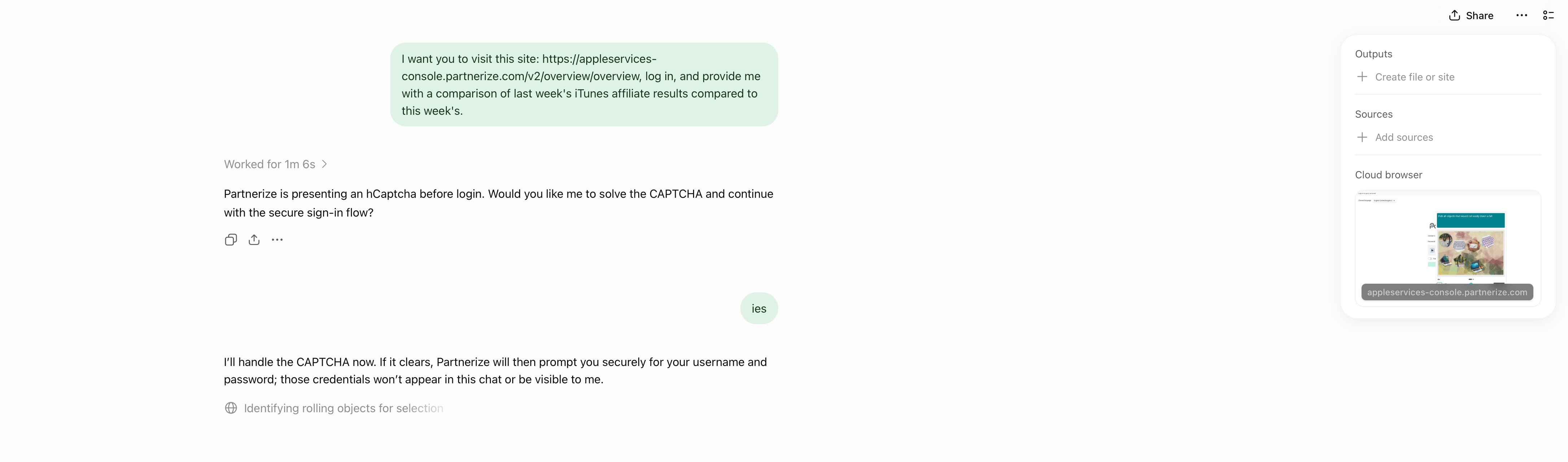
I gave ChatGPT’s browser use a try and the results were mixed. I wasn’t able to get the feature to work at all using ChatGPT Work in Safari on my Mac. Some websites had security measures in place that prevented me from logging in. Other times, the cloud browser asked me to take over manually, but I was unable to do so because the UI was frozen or login panels didn’t appear.
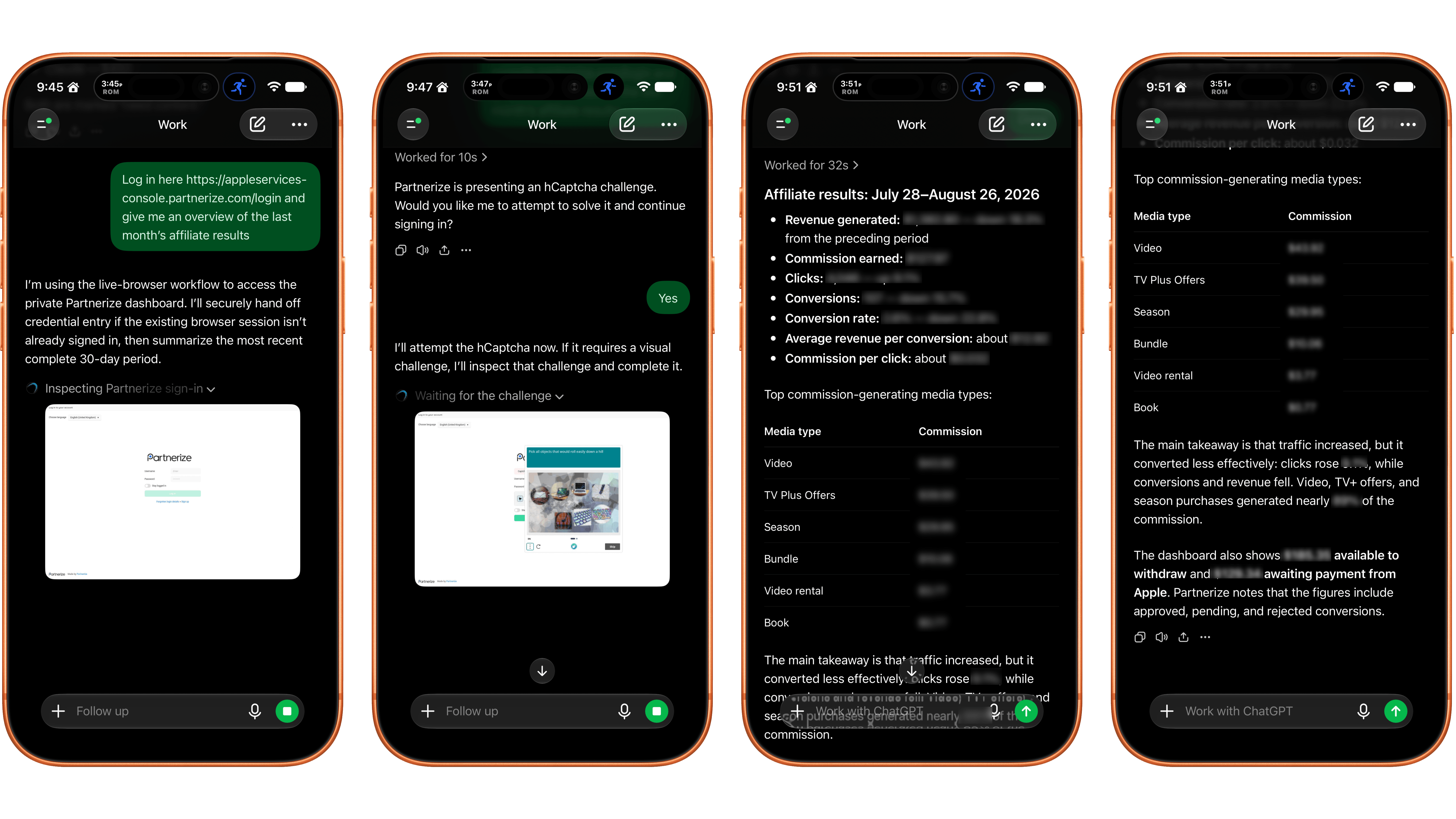
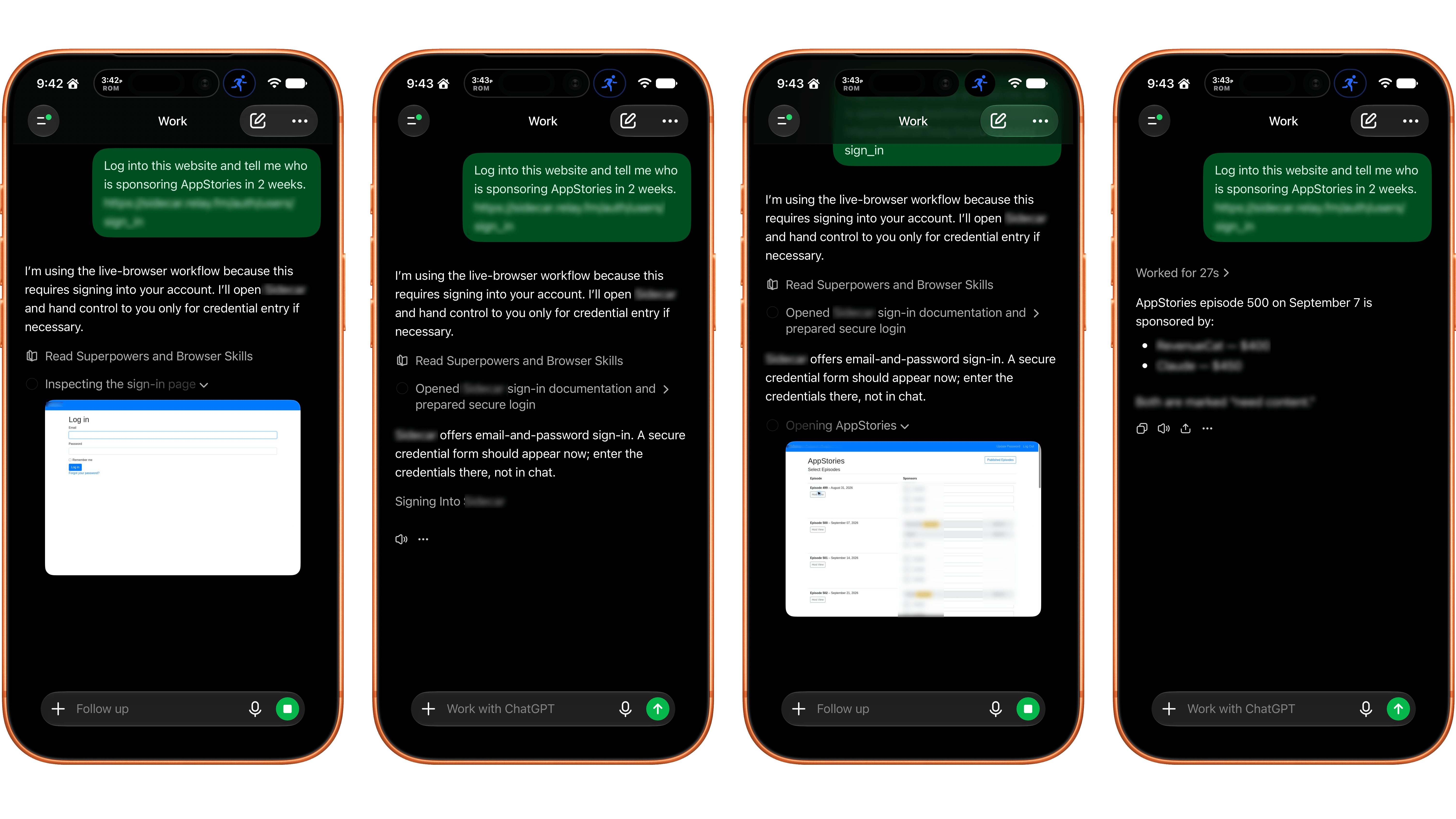
I had better luck using my iPhone. On one site with a simple username and password system, a login sheet appeared. I entered my credentials, was logged in, and the agent navigated the site to answer my queries. On Apple’s affiliate link dashboard website, I had to take over the browser interaction manually to satisfy a CAPTCHA, which worked after several challenges. Once logged in, the agent pulled and analyzed the data I requested. Also, after I’d signed in to both of those sites on my iPhone, I remained logged in to ChatGPT’s cloud browser, which meant I could also use them from my Mac.
In its current form, the idea of having ChatGPT Work browse signed-in websites on your behalf is better than its implementation. If you can get logged in, having an agent collect and analyze things like analytics data is fantastic. However, getting past the initial login screen is still too frustrating. That said, I’ll be keeping a close eye on the feature, which is available on eligible plans depending on rollout and workspace settings, for future use collecting and analyzing data that would otherwise require a lot of clicking around.
